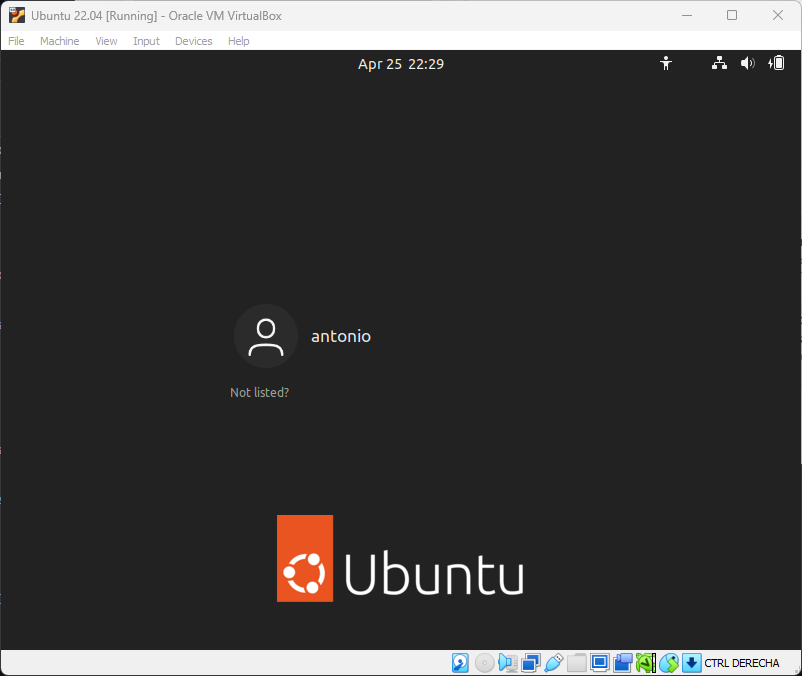
In this guide, I'll show you how to install Ubuntu on a Virtual Machine. This will allow you to use Ubuntu without changing the current Operating System of your PC (Windows o macOS)
If instead, you prefer to install Ubuntu on a partition of your PC to start your PC directly with Ubuntu, then you can skip this guide and continue with the next lesson.
If you already have a PC with Ubuntu 22.04 or higher, then you can directly skip to the lesson in which we will install ROS 2 on your machine.
The Virtual Machine that I use is Oracle VM VirtualBox, however, you can choose any other Virtual Machine available on the market if it is more familiar to you.
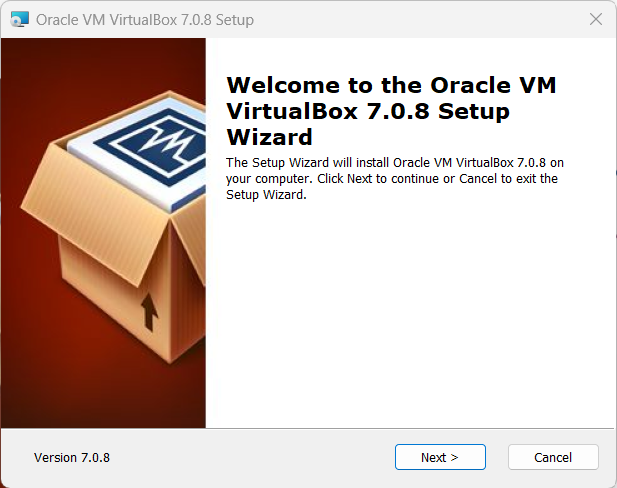
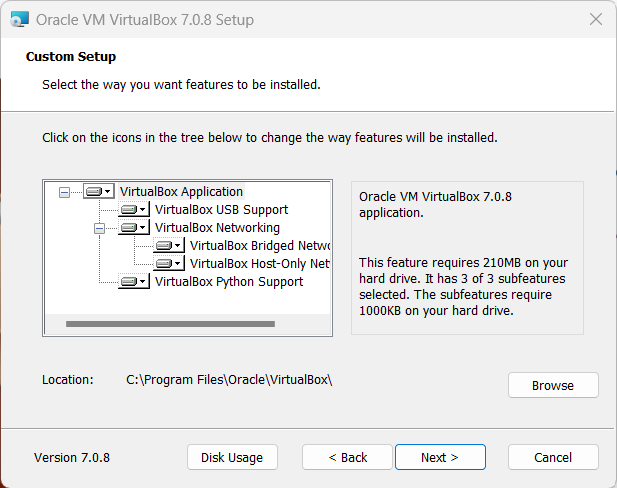
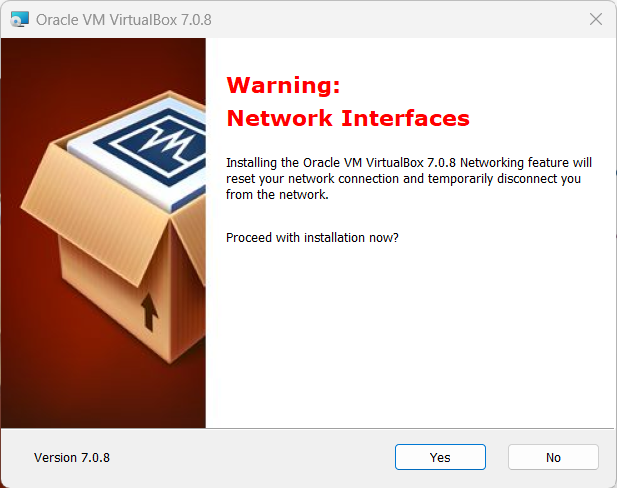
Download Oracle VM VirtualBox for your operating system (Windows o macOS) and follow the installation procedure
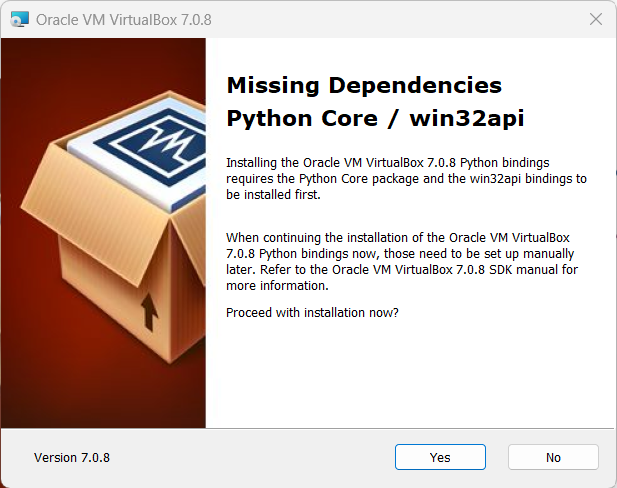
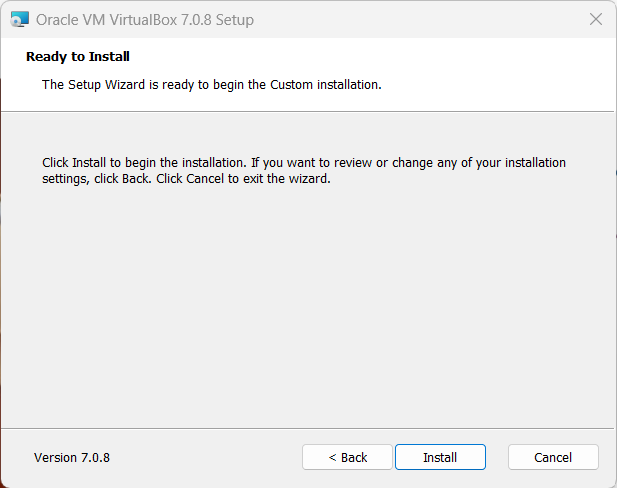

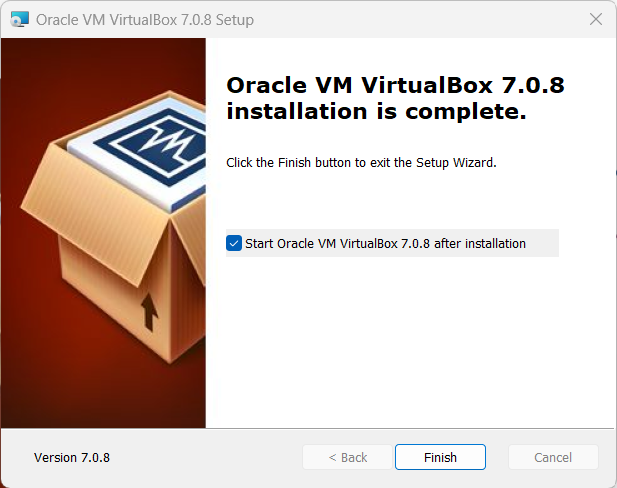
Download the ISO of Ubuntu 22.04 from the official website and once the download is finished, you can proceed with the configuration and installation of the Virtual Machine.
In Oracle VM VirtualBox creates a new virtual machine by clicking on "New".
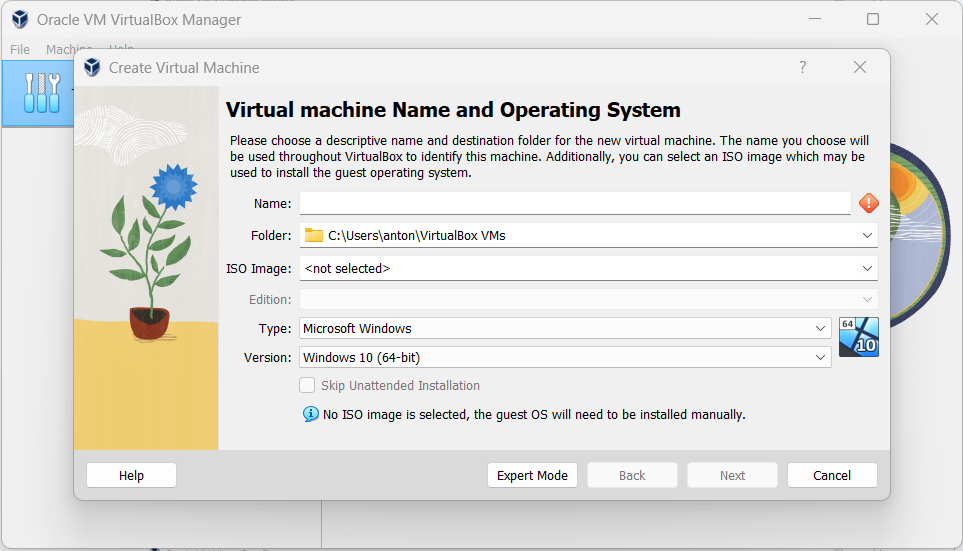
Select a name for the virtual machine in the "Name" section, then indicate the path to the Ubuntu 22.04 ISO and click "Next".
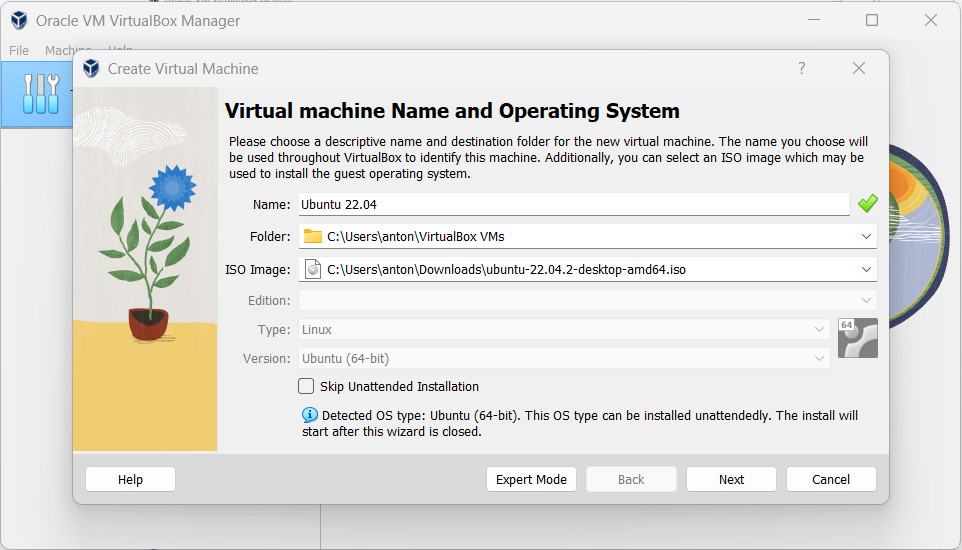
Choose a user name and password to be used for logging into Ubuntu 22.04 once the installation process is complete. Then click "Next".
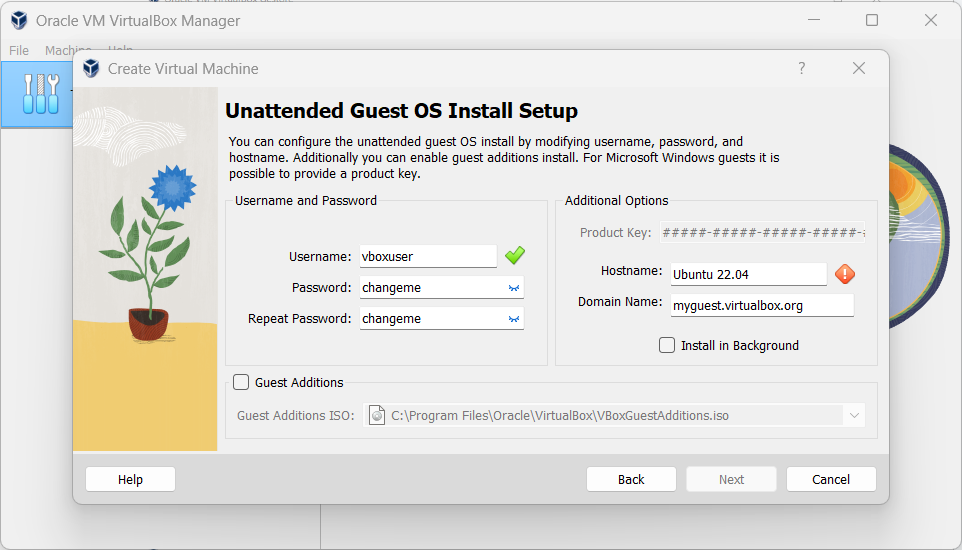
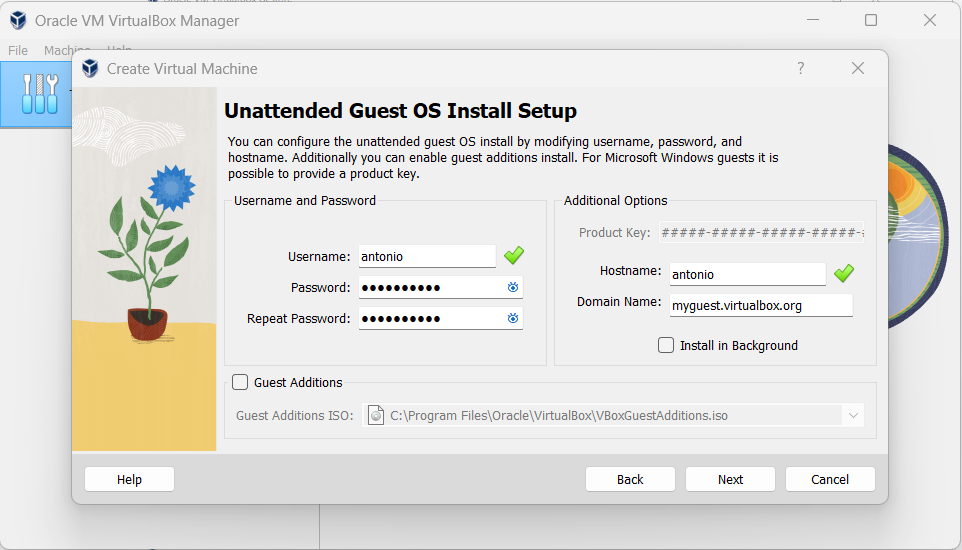
Allocates part of the RAM memory and indicates the number of CPUs of your PC to be allocated for the simulation of the Operating System in the Virtual Machine. These values depend on the technical specifications of your PC, but remain within the limits recommended by the Virtual Machine. Then click "Next".

Decide how much space you will allocate on your hard disk to be used by the operating system you are going to simulate in the virtual machine. I recommend allocating at least 25 GB of memory for the virtual machine to install all the necessary components. Then click "Next".
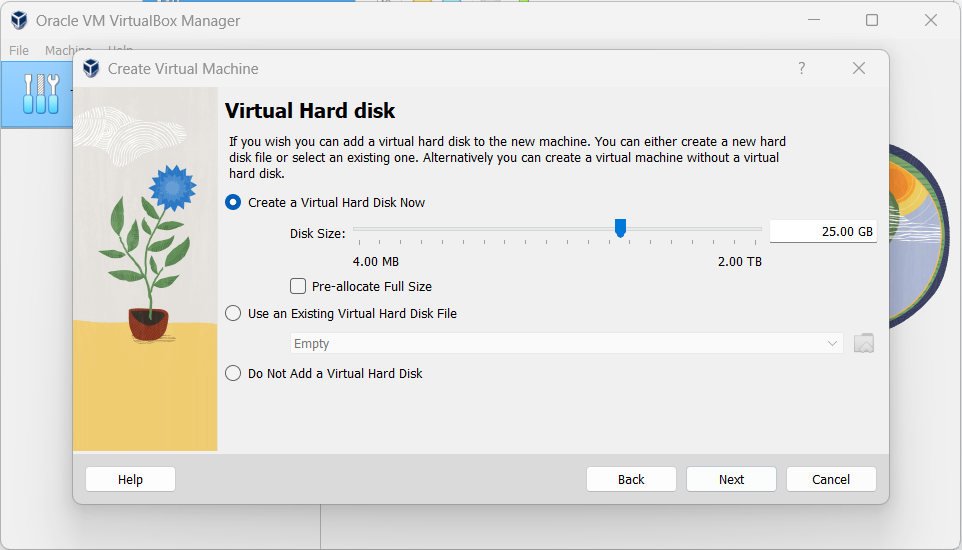
Check that all Virtual Machine settings are correct, then click 'Finish'.
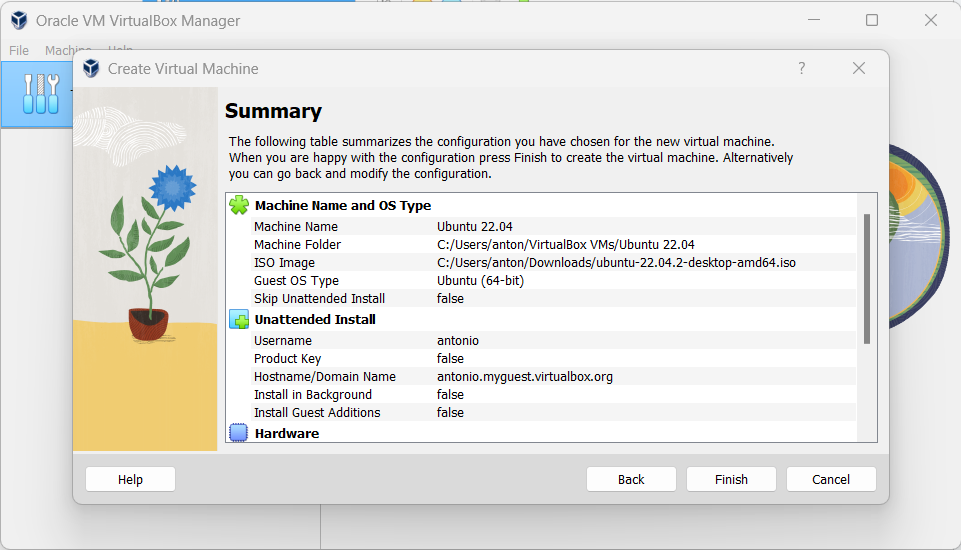
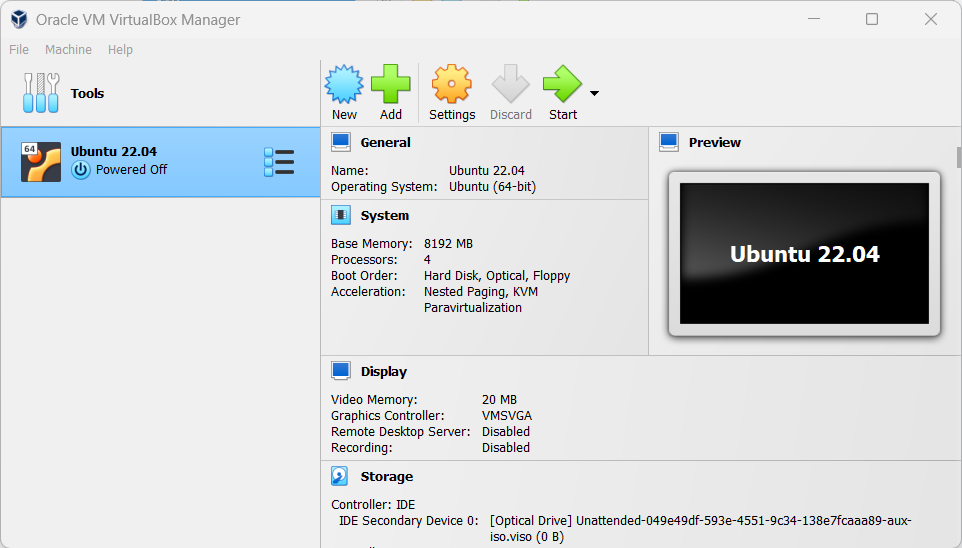
Now you can proceed with the installation of Ubuntu on your Virtual Machine.
Select the Virtual Machine you just created, then click on “Start”
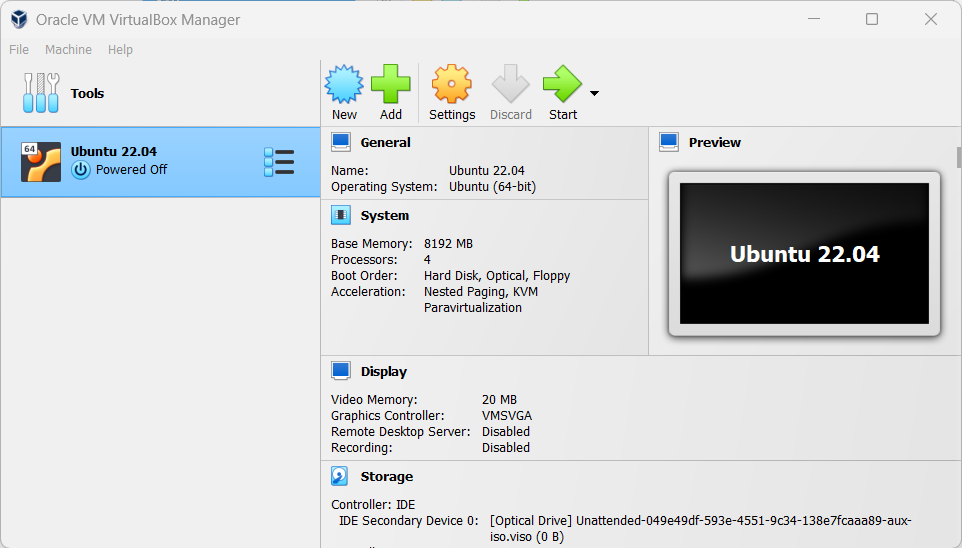
When booting Ubuntu on the Virtual Machine for the first time, the installation process will automatically start. Wait until it is completed
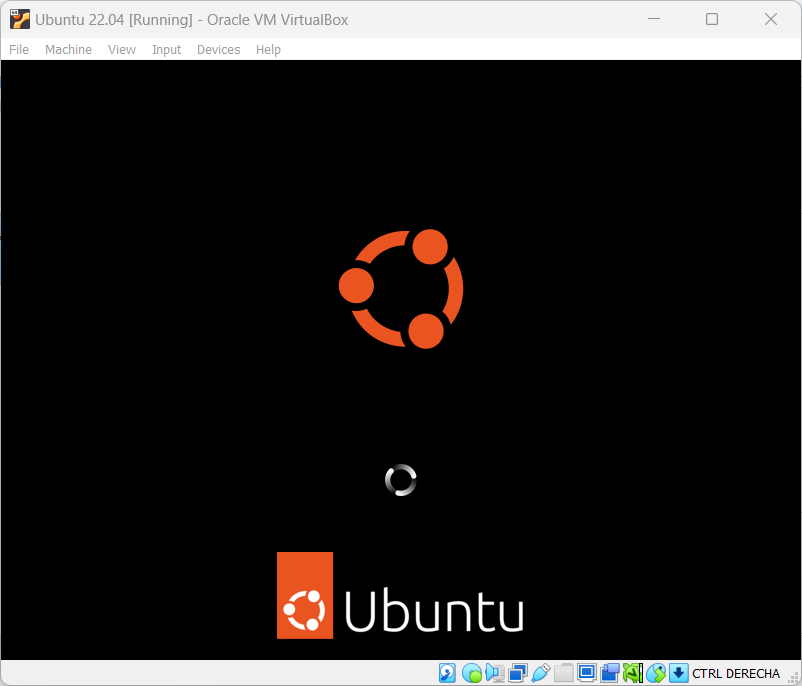

Once the installation is completed, you can start using Ubuntu 22.04 within your Virtual Machine