In this guide, I'm going to show you how to install Ubuntu on dual boot with your current operating system. This will allow you to decide at the moment of the boot of your PC which operating system to start (Windows or Ubuntu)
If otherwise, you prefer to install Ubuntu on a virtual machine and avoid creating a partition of your hard disk PC, then you can follow the previous lesson in which I explain how to install Ubuntu on a Virtual Machine.
If you already have a PC with Ubuntu 22.04 or higher, then you can skip this lesson and move directly to the next one in which we will install ROS 2 on your machine.
Download the Ubuntu 22.04 ISO from the official store and once the download is finished you can proceed to the creation of a USB for the installation of Ubuntu on your PC.
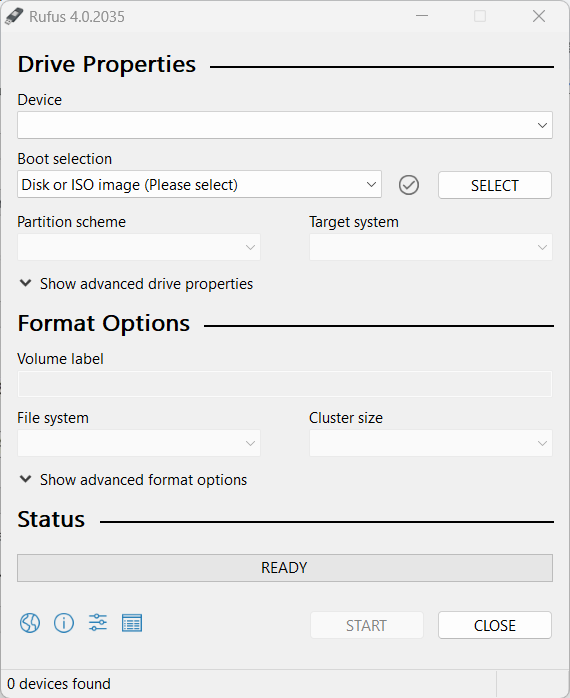
Once you have downloaded the Ubuntu ISO, you need to create a USB for the Boot of Ubuntu at the startup of your PC. To do so, you will need another tool called Rufus that you can download from here, and once downloaded you can run the executable.
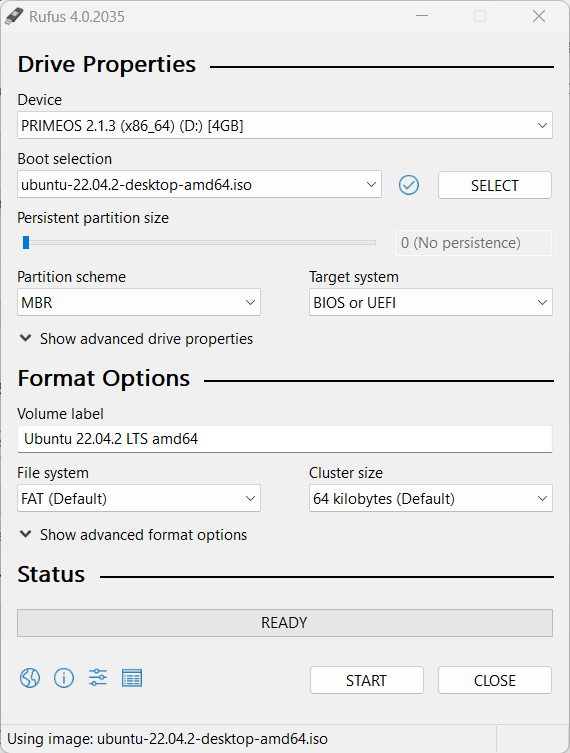
Plug the USB on your PC and in the section "Boot Selection" insert the directory of your PC where you downloaded the Ubuntu ISO in the previous step.
Once done with the configuration of Rufus, click on "Start" and wait until the program finishes the writing process of the ISO on the USB.
Before installing Ubuntu, you need to reserve some space on your Hard Disk to be used by Ubuntu. I would suggest you reserve at least 30GB in order to install Ubuntu, ROS, and all the additional components needed in this course.
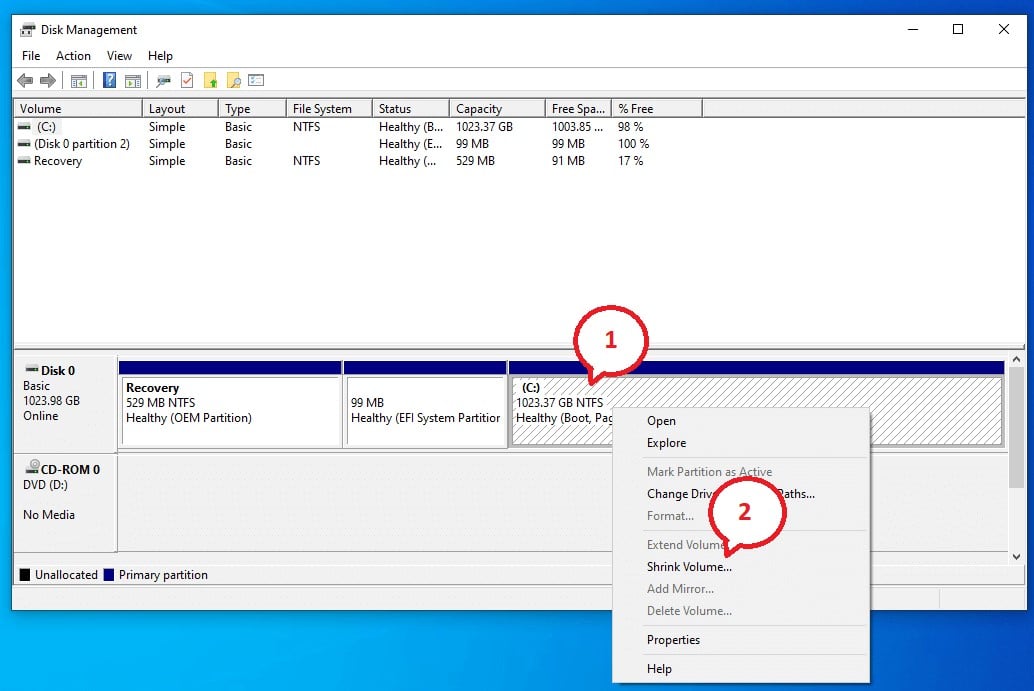
To create a partition in Windows click on Win + R and then diskmgmt.msc and click on "OK".
This will show you the storage space available on your PC and you will be able to create partitions of the disk and reserve space for other operating systems on the same computer.
Then specify the size to be reserved for Ubuntu and once done click on "Shrink"
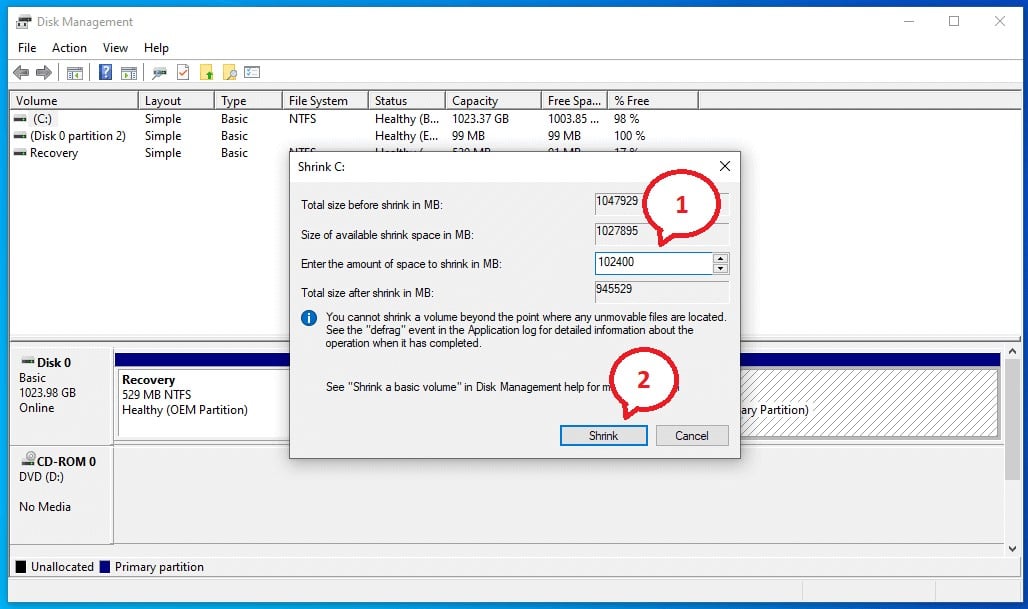
This will create a partition of your hard disk of the specified size
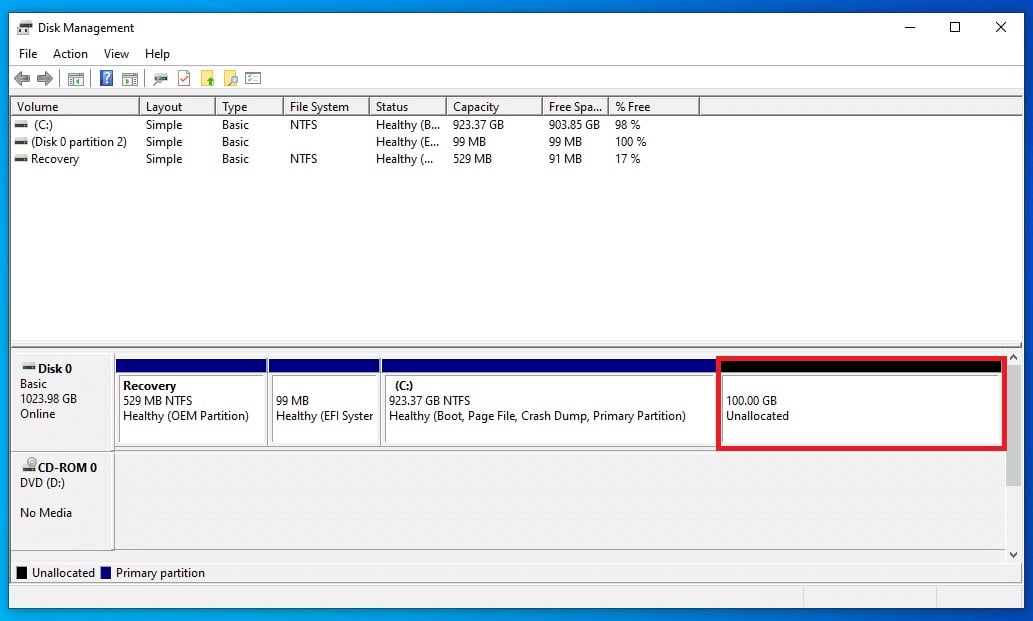
At this point, you are ready to install Ubuntu and all the components in this reserved area of the hard disk.
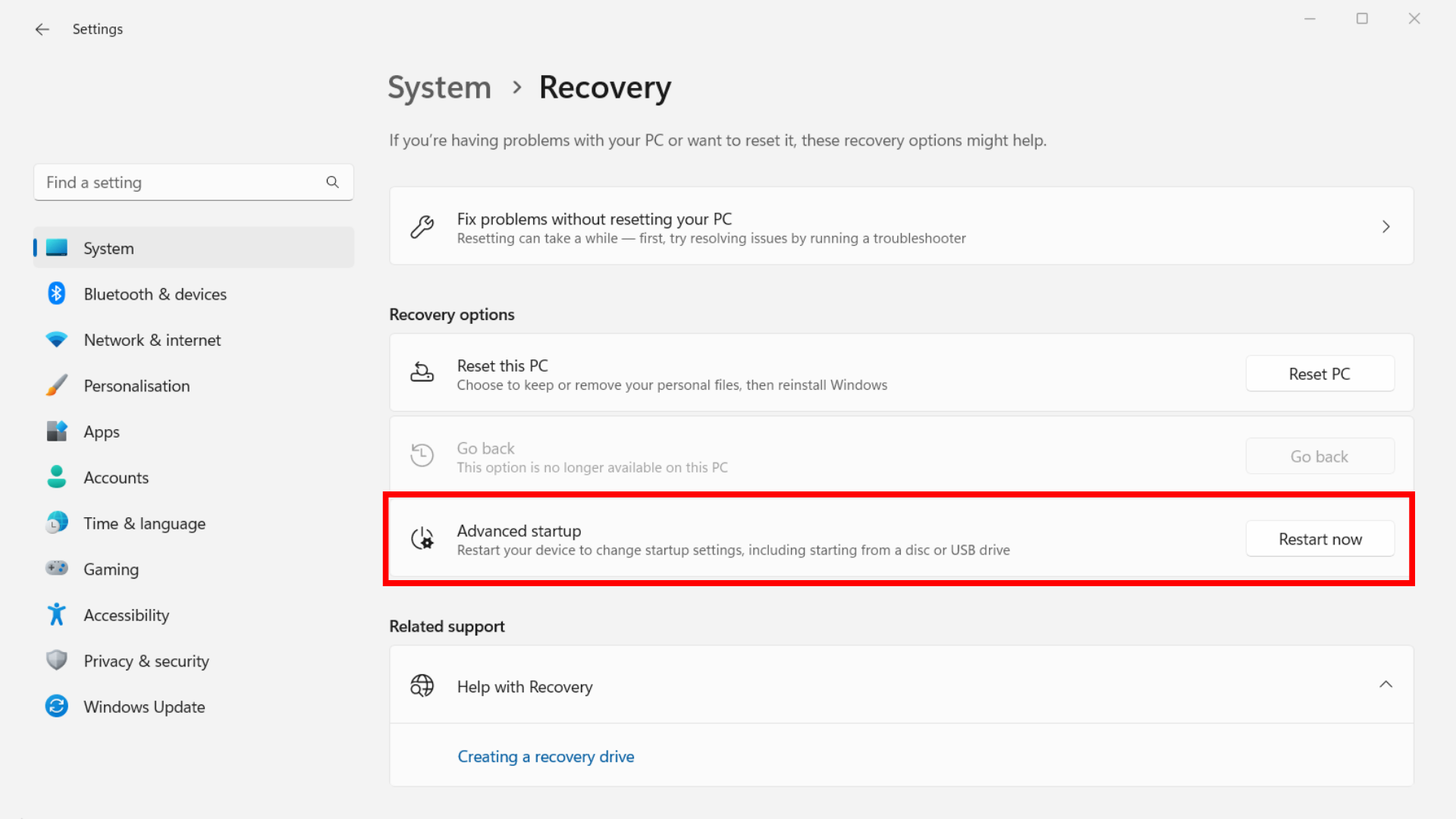
Plug the USB in your PC on which you installed Ubuntu and reboot your PC in advanced mode by clicking on "Advanced Startup". To do so, go into Windows settings and then "Update & Security"

Then go to the "Recovery" tab and click on "Advanced Startup" and then on "Restart Now"
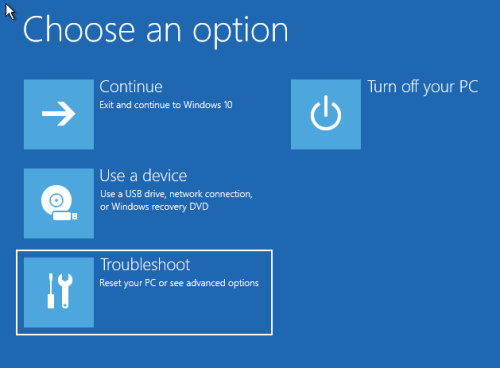
Windows will reboot in advanced mode and will ask you which action to take. Here click on "Use a device" to reboot your PC with the Ubuntu Boot installed in the USB.
On the next startup of the PC, it will booted with the operating system on the USB and you can start installing Ubuntu
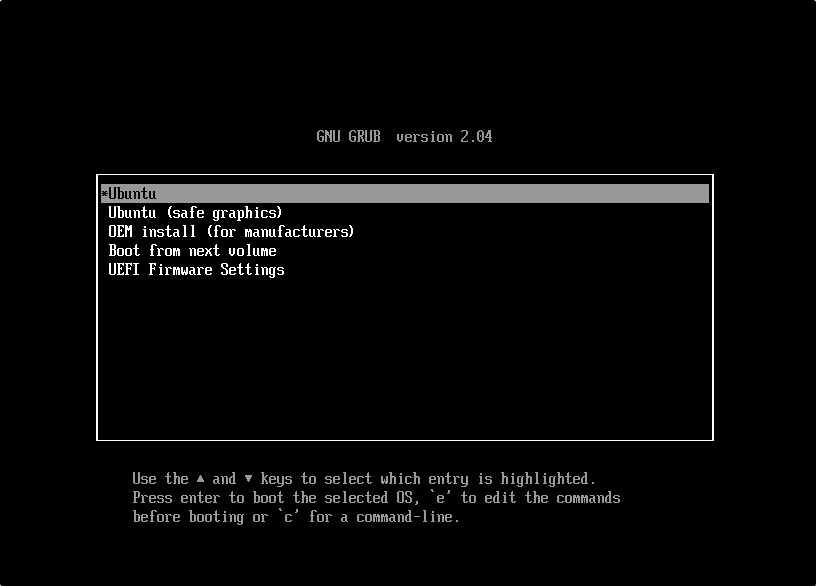
In the Ubuntu welcome window select "Install Ubuntu"
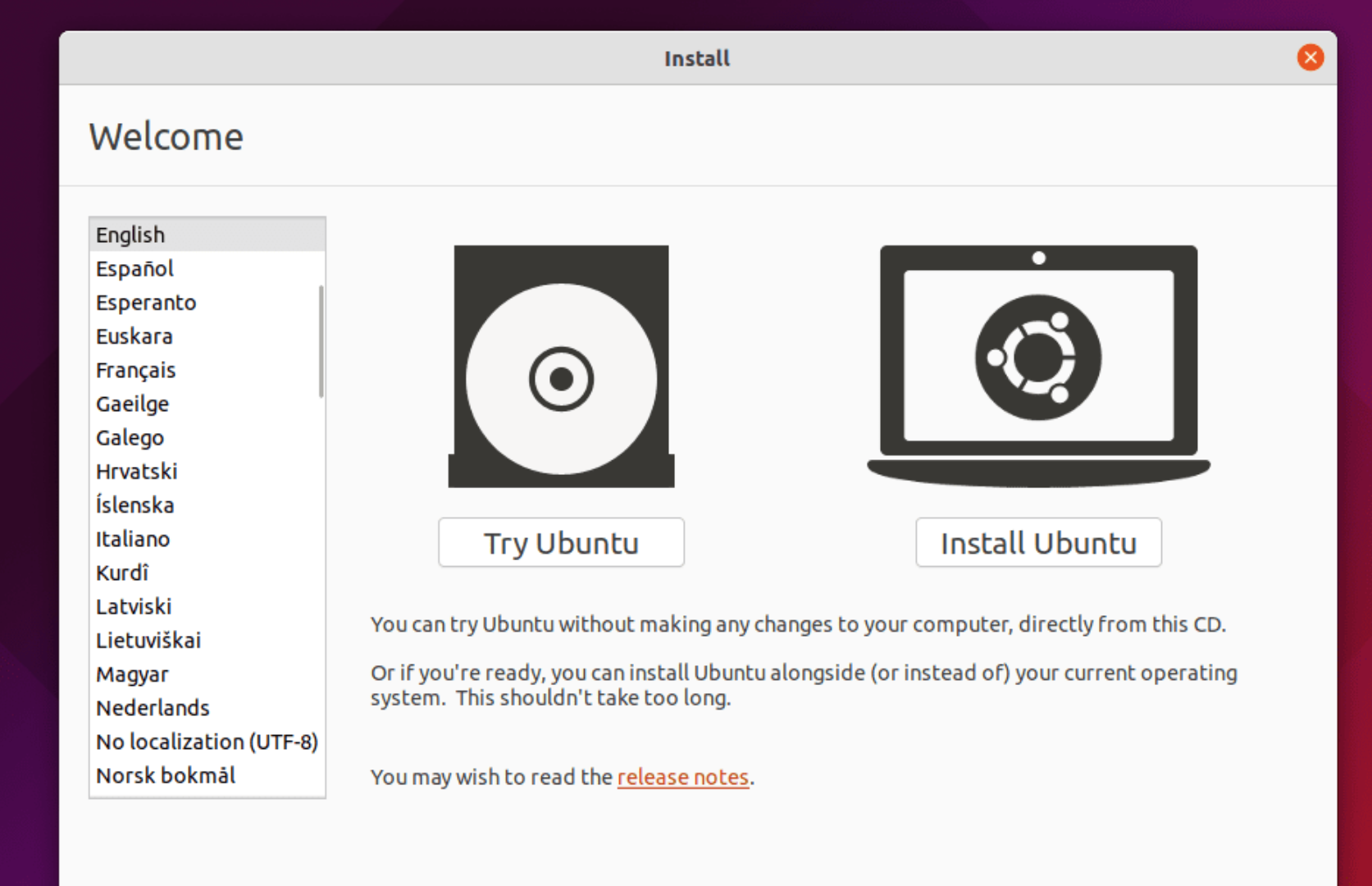
Then choose the configuration of your keyboard and click on "Continue"
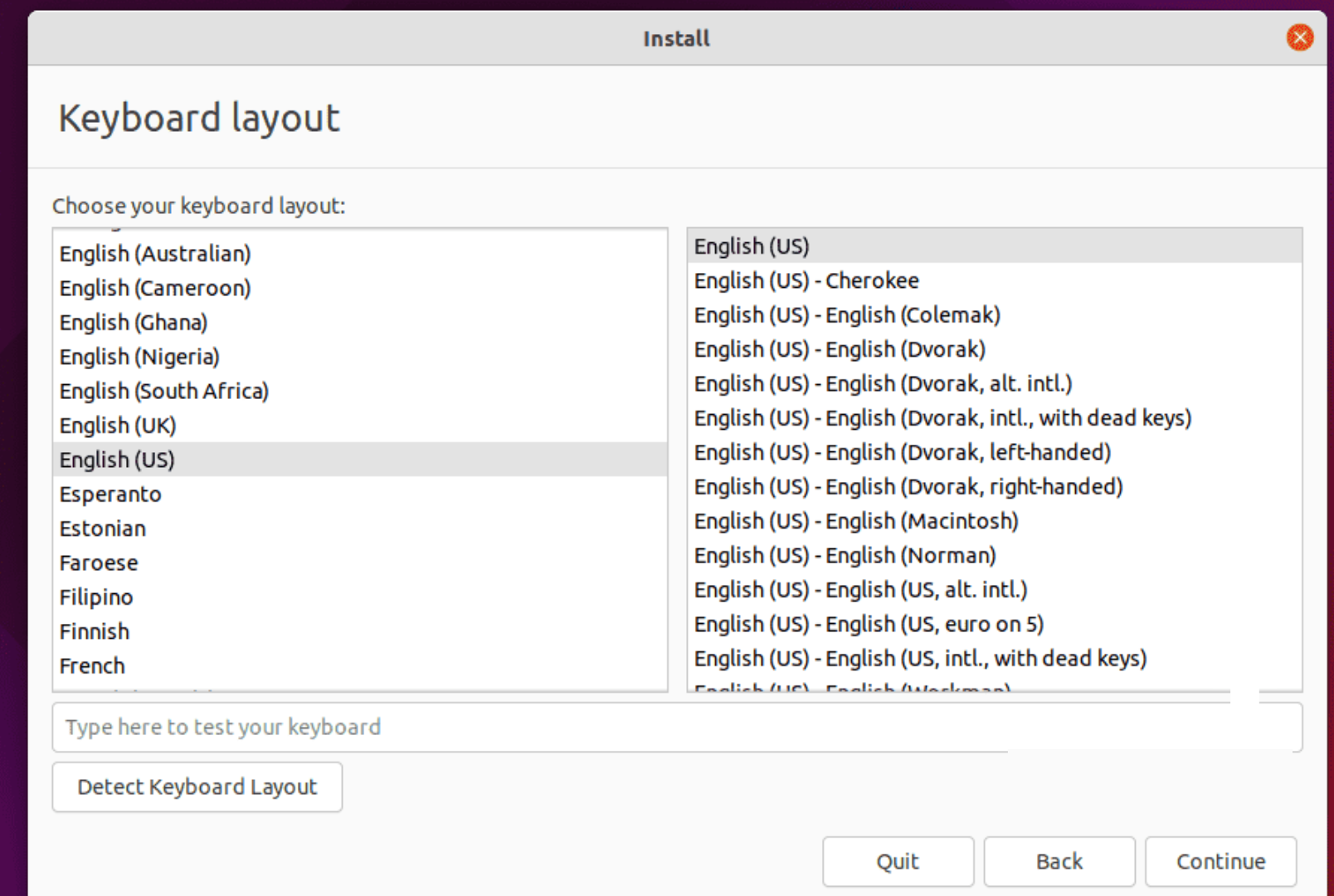
In the following window, you will be asked which kind of installation you want to execute. In order to have the full version of Ubuntu with all the components click on "Normal Installation" and during this phase, you will also be asked to automatically download the Ubuntu updates during the installation of the operating system. Also, you can choose to download and install third-party software like for example the drivers of your graphics card.
I would suggest you at least to select the voice "Download updates while installing Ubuntu" and then click on "Continue"

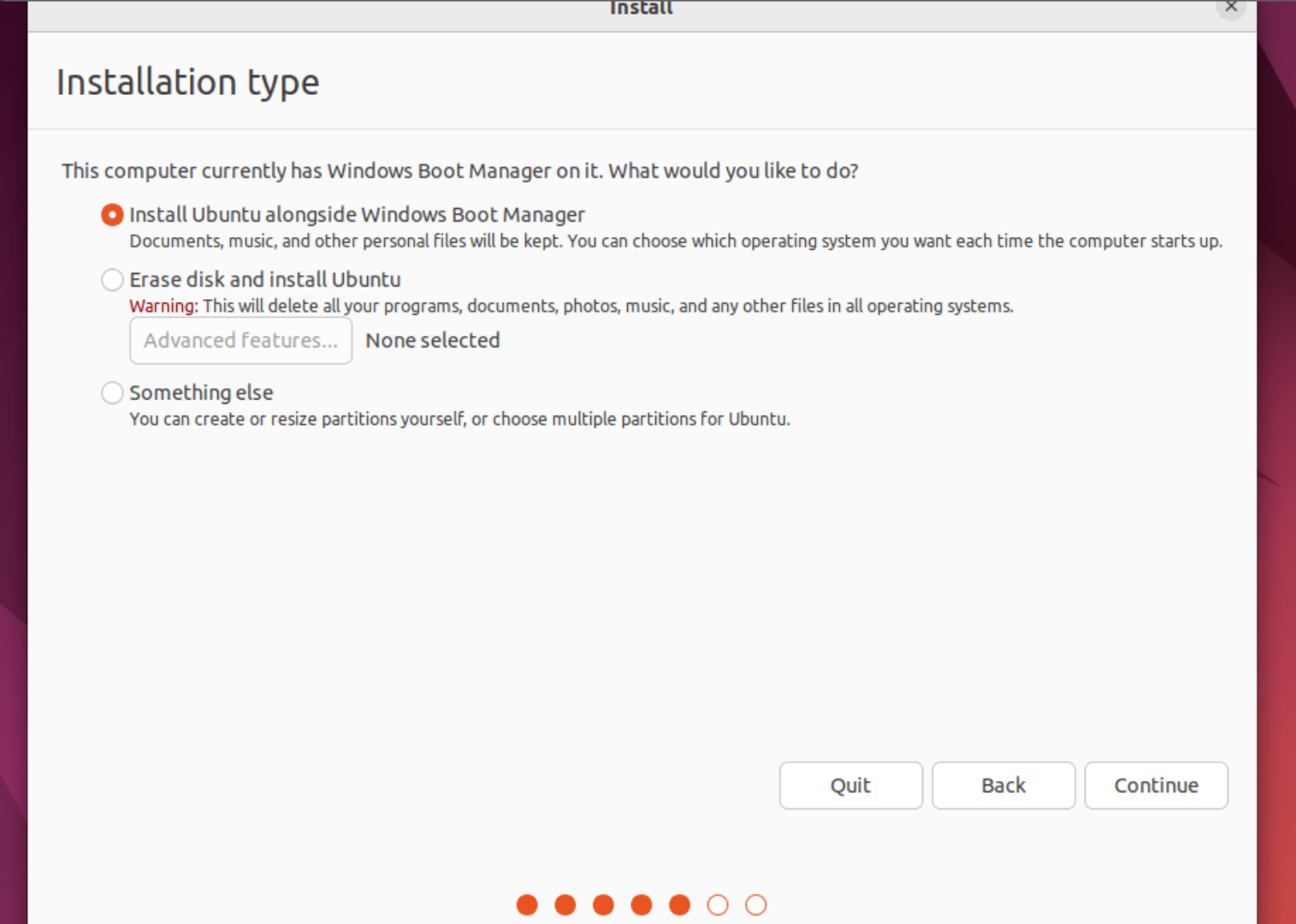
Finally, before proceeding with the installation of Ubuntu, you will be asked in which storage space you would like to install all the components. The system will automatically detect that you already have a version of Windows installed on your PC, so you'll see the option to "Install Ubuntu alongside Windows Boot Manager" and click "Continue”
You can now choose the disk partition in which to install Ubuntu and then select the disk partition we freed in the previous steps and click "Install Now".
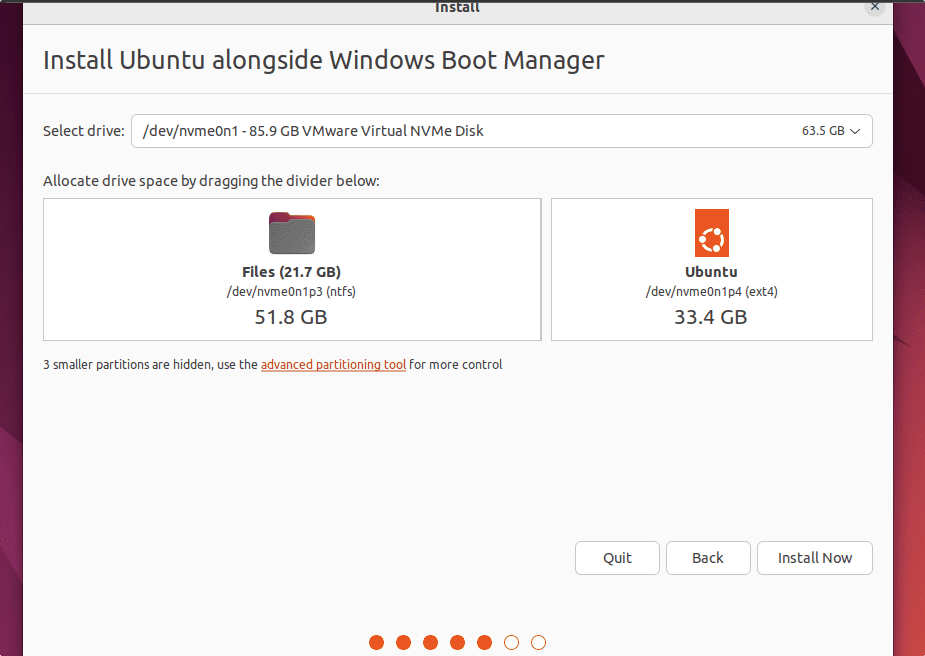
The installation configuration is now complete and the system will begin installing Ubuntu on the indicated hard disk partition.
During the installation procedure, you can start by configuring your PC with Ubuntu with the time zone of your area, username, and password for logging in to Ubuntu.
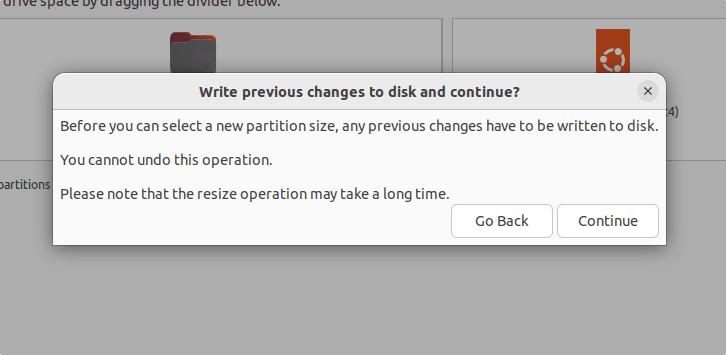
Then restart your PC by clicking on "Restart Now"
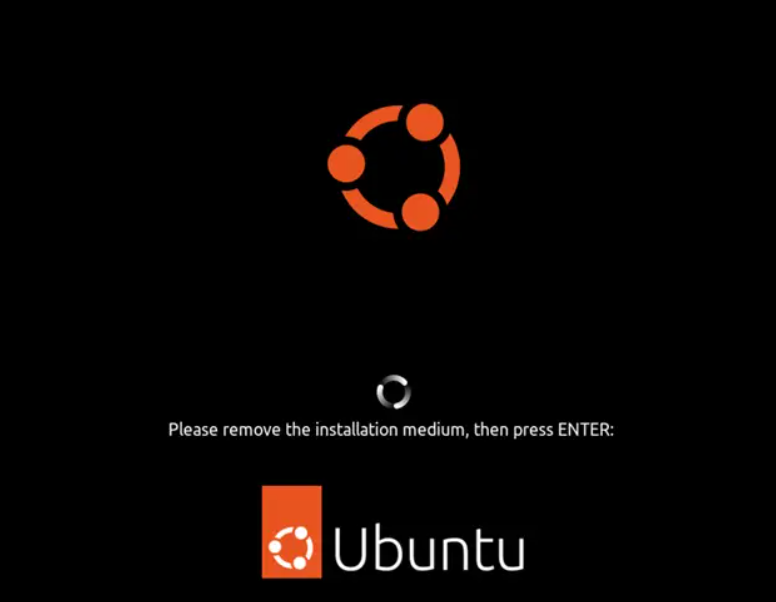
Now remove the USB with Ubuntu Boot that you inserted at the beginning of the installation and click "Enter" on your keyboard