This note will cover important fixes for volumes issues and file watchers not updating changes on Windows. Please do not continue with the next lecture until you have read this note in full. Solution #2 is a best practice, however, it will require more work, configuration and code changes. Solution #1 will allow you to move forward very quickly and requires only a small code change.
Many students have indicated recently in our QA that they wish to know the quickest and least complicated solution to solve the code not updating on Windows issue regardless of whether it is a best practice. Please understand, this solution only resolves the reloading of the web application, it will not help with the re-running of the tests. Solution #2 is the only thing that will help with both the reloading of the app and the re-running of tests after a code change.
This solution assumes that the project exists on the Windows file system and was not created on or copied to the WSL Linux file system.
There is currently an undocumented solution in the latest versions of Webpack:
https://github.com/facebook/create-react-app/issues/12397
1. You can add the variable to your frontend src/package.json start script like so:
  "scripts": {
    "start": "WATCHPACK_POLLING=true react-scripts start",
2. Build the image as you normally would:
docker build -f Dockerfile.dev -t USERNAME:frontend .
3. From the root of your frontend project directory, run the container using PowerShell:
docker run -it -p 3000:3000 -v /app/node_modules -v ${PWD}:/app USERNAME:frontend
Do not use the pwd variable shown in the course videos. This will not work with Windows terminals. Please use ${PWD} which is correct for use with PowerShell.
When using WSL to run Docker Desktop on Windows, the project should have been created on the Linux file system and all docker commands should be run within WSL as per best practices:
https://docs.docker.com/desktop/windows/wsl/#best-practices
If the project was created on the Windows file system, the volumes may not work correctly and performance may greatly suffer. To address this, you will need to copy your project to the Linux File system using the following instructions:
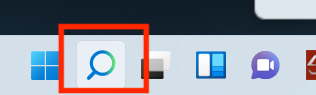
1. To open your WSL operating system use the search / magnifying glass in the bottom system tray:
2. Type the name of your distribution (by default it is Ubuntu) and click Open:
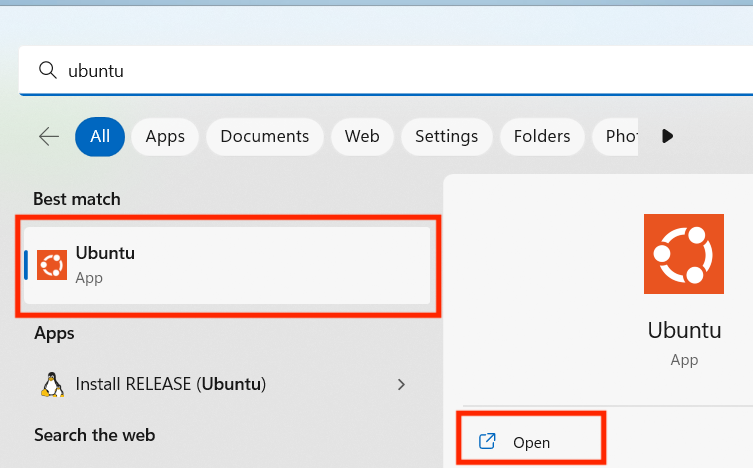
3. When the terminal launches it should automatically open to the home directory on the Linux filesystem.
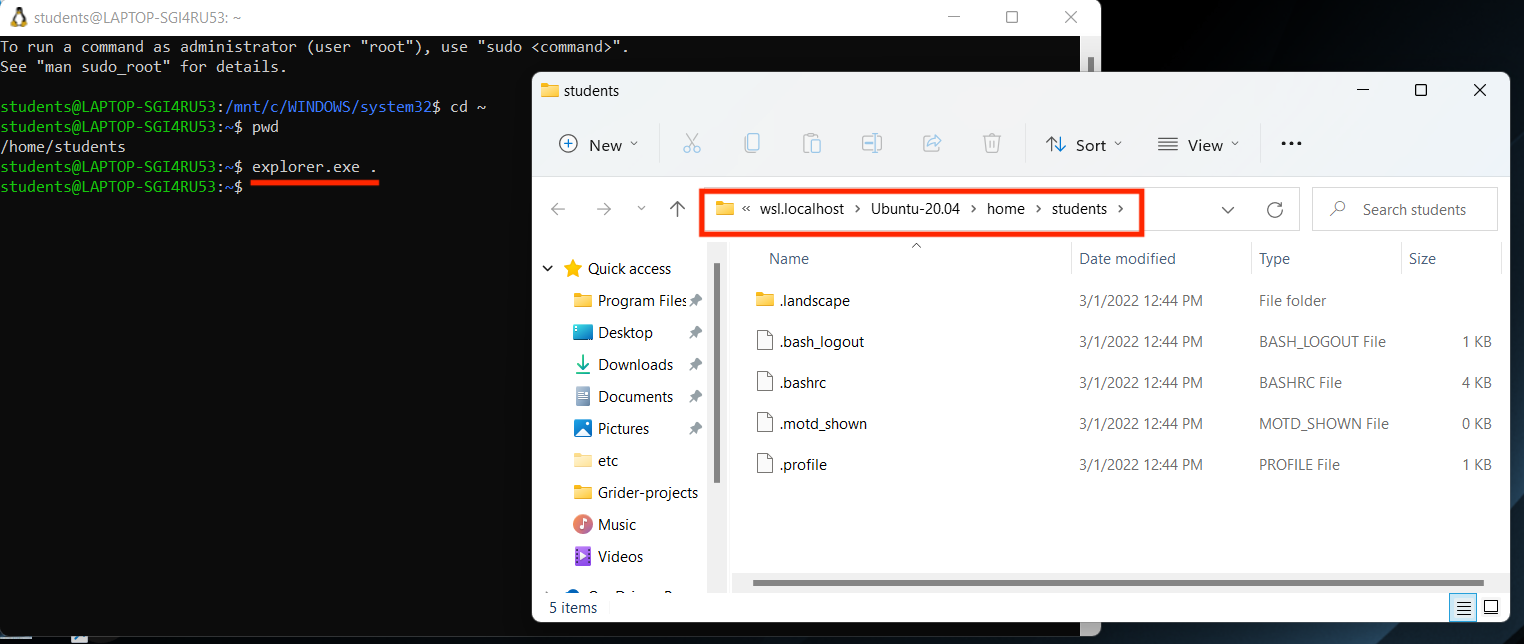
4. Run explorer.exe . to open up the file explorer at /home/USERNAME directory within WSL:
5. Move the frontend project directory into the WSL file browser window:
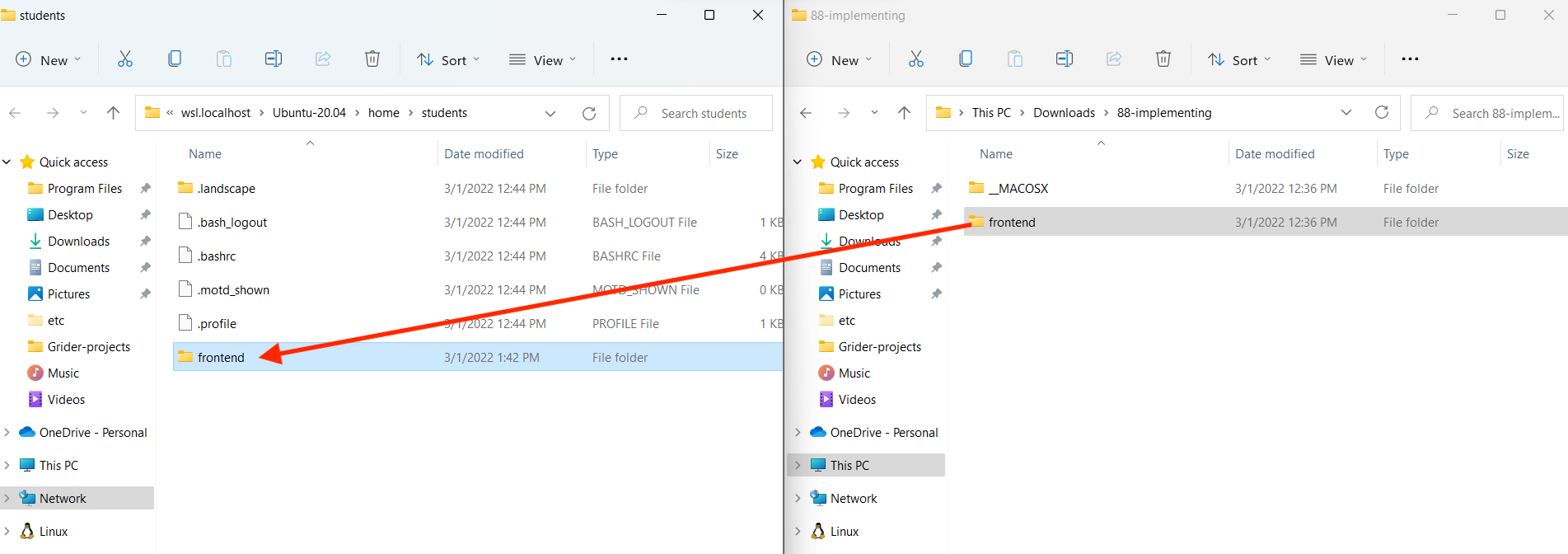
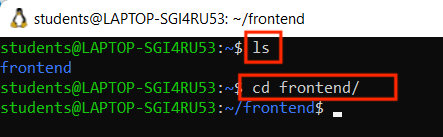
6. Your project path should now look like /home/USERNAME/frontend. Run ls to confirm that you are in the correct location. Then, run cd frontend to change into the project directory.
7. Delete any node_modules or package-lock.json files that may exist in the project directory. If these were generated on the Windows file system and were copied over, they will conflict.
8. Update the FROM instruction of your Dockerfile.dev to use this lts-alpine version of Node:
FROM node:lts-alpine

WORKDIR '/app'

COPY package.json .
RUN npm install

COPY . .

CMD ["npm", "run", "start"]
9. Using the WSL terminal build your Docker image as you typically would:docker build -f Dockerfile.dev -t USERNAME:frontend .
10. Using the WSL terminal, start and run a container. It is very important that you do not use a PWD variable as shown in the lecture video. Use the ~ alias for the home directory or type out the full path:
Using ~ alias:docker run -it -p 3000:3000 -v /app/node_modules -v ~/frontend:/app USERNAME:frontend
Using the full path:docker run -it -p 3000:3000 -v /app/node_modules -v /home/YOURUSERNAME/frontend:/app USERNAME:frontend
11. Going forward in this course, all Docker commands and projects should be run within WSL and not Windows.
https://code.visualstudio.com/docs/remote/wsl#_open-a-remote-folder-or-workspace
With the terminal of your distro, make sure you are inside your frontend project directory and run the explorer.exe . command. This will open a file browser window within the WSL location. Copy the location path:
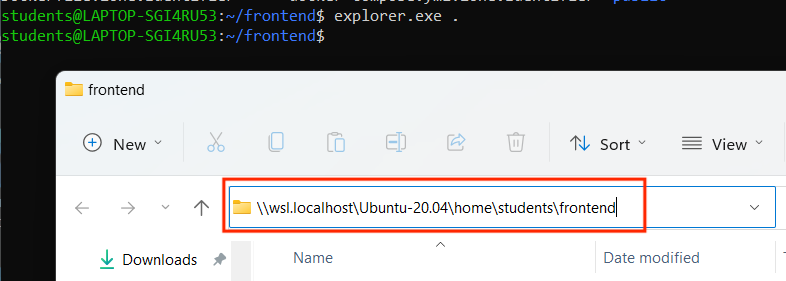
Go to VSCode and select File, then Open Folder. Paste the wsl address you just copied into the file browser window and click the Select Folder button:
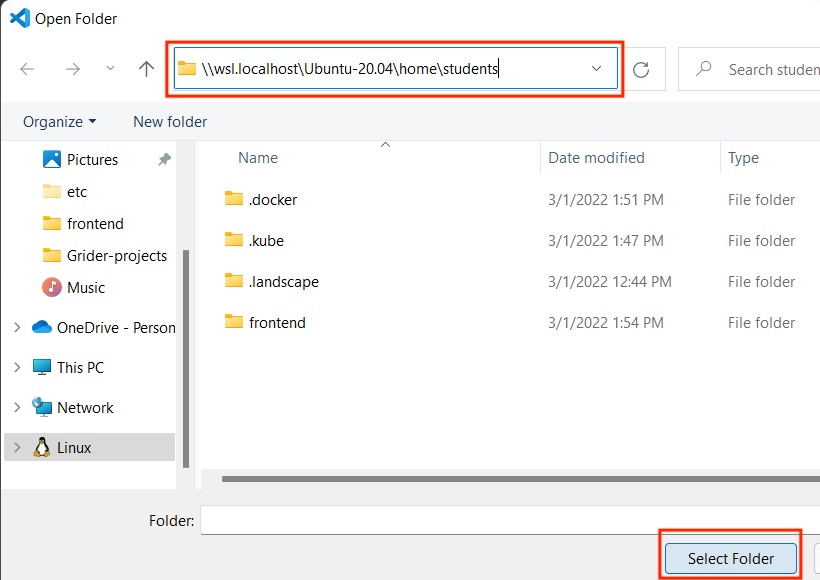
This will add the project that is located in the WSL file system into your VSCode workspace.