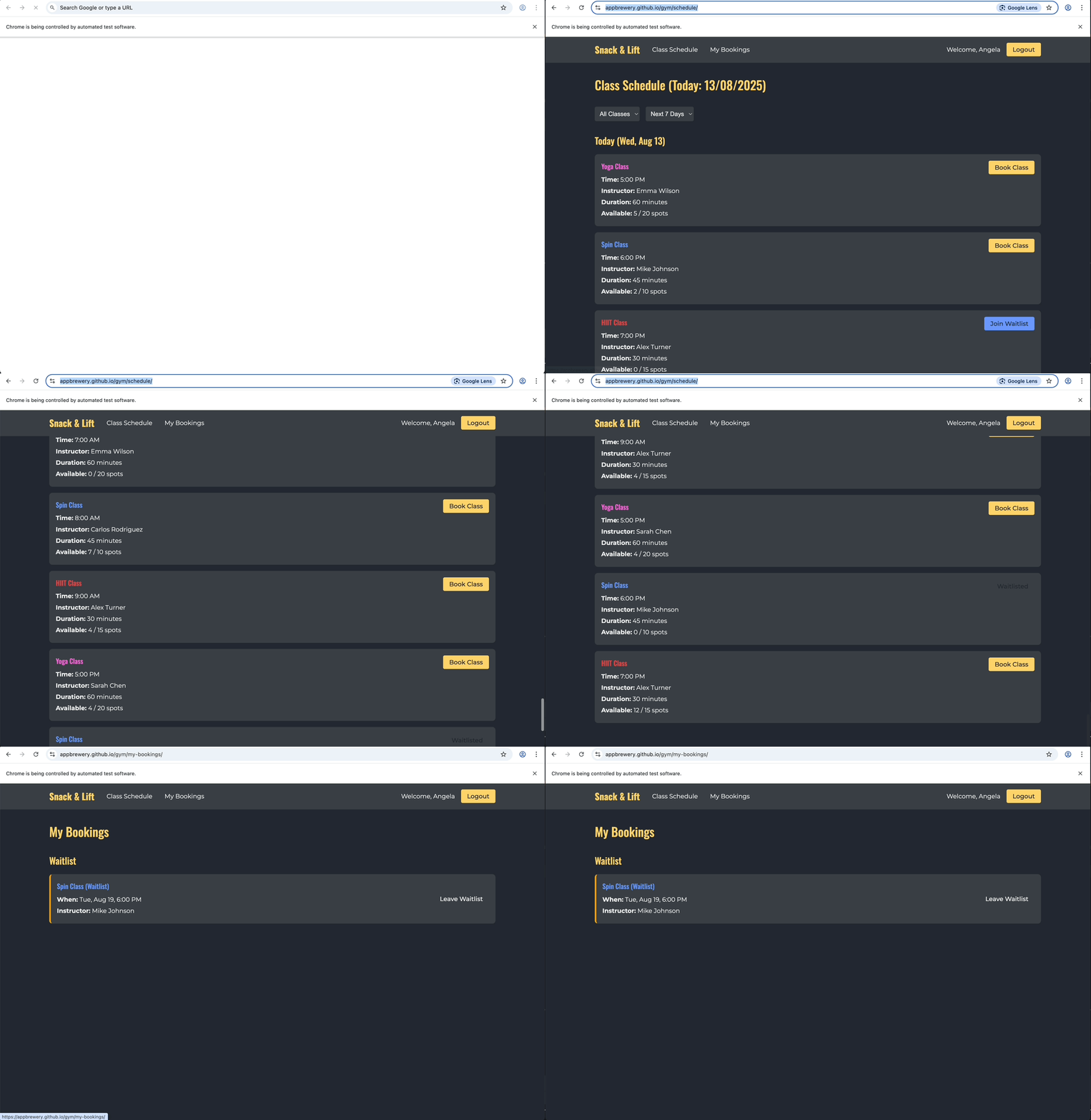
Now for the fun part - actually booking a class! Figuring out how to use the selectors for this is also the hard part!
Your task:
Find the next Tuesday 6pm class (any type - Yoga, Spin, or HIIT)
Click the "Book Class" or "Join Waitlist" button
Print a success message like: ✓ Booked: Spin Class on Tue, Aug 12 (yes, you can add emojis to the string so that they add some colour to the console 🤗)
Hints:
The default filter shows "Next 7 Days" - perfect!
Parse the day and time from each class card
Look for patterns in the HTML structure
After Selenium finishes, Chrome should stay open so you can manually check your booking on the "My Bookings" page like this:
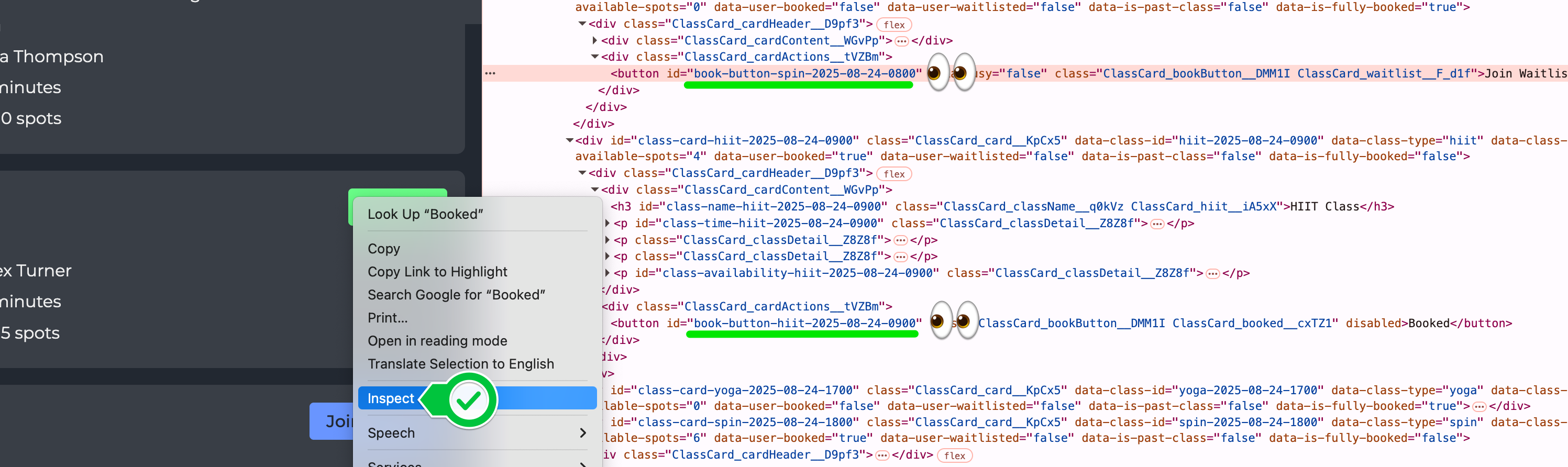
Right click to inspect various elements in the class table. Do you see a pattern in the naming of IDs?
Say there are paragraph elements like this:
<p id="class-time-123">Tuesday</p>
<p id="something-456">Blah blah</p>
<p id="class-time-789">Thursday</p>
Here's how you might select the first and third paragraph elements that share the same naming convention with your selector:
find_element(By.CSS_SELECTOR, "p[id^='class-time-']")
This part is key:
"p[id^='class-time-']"
p → Match a <p> (paragraph) element.
[id^='class-time-'] → Match only if its id starts with "class-time-".
Ancestors: How to find a parent 🧑🧒🧒
We'll need to figure out if a class takes place on a Tuesday. But the day is not on the card itself - it's in the parent. So how do we access the parent if we've found the class cards?
You can think of the HTML DOM like a family tree:
Child = card element
Parent = the element directly wrapping the card (e.g., a div)
Grandparent = the wrapper around the parent one level up
All of those wrappers are ancestors. This means we can use ancestor::div to walk upward to the parent and list every wrapping <div> on the way to the root of the page. This should help you locate the parents for the cards.